
"To get a booking button on Google Maps you have to sign up with a supported booking system." Plenty of people read that and stop there. It is half true. The other half needs no contract, no approval and no waiting — you add the link yourself.
Google Maps has two separate mechanisms that share the word "booking". This article separates them, then walks through the route you can set up yourself, the three places to look when the link you added does not appear, and what the page behind that link has to do once someone taps it.
Contents
For the wider set of booking problems that shops and studios run into, see the service businesses resource hub.
There are two kinds of "booking" on Google Maps
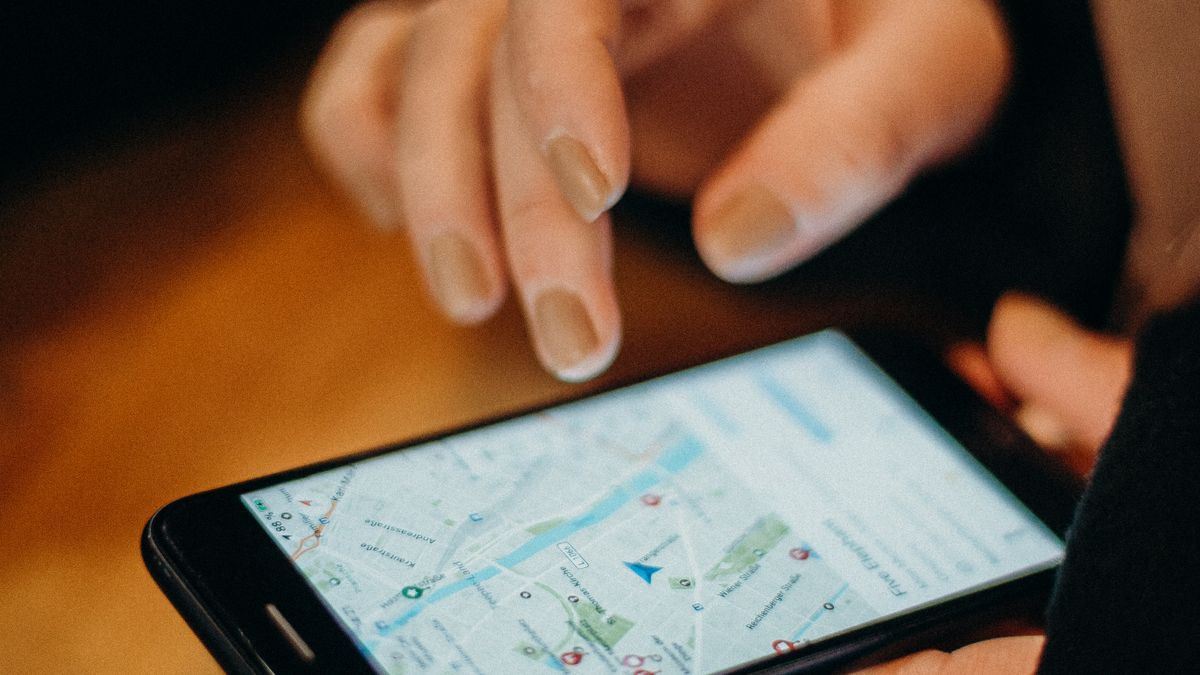
The conclusion first: one of them you can set up on your own, and one of them requires a supported provider. Most of the guides you find explain only the second, which is why people never reach the steps for the first.
| Booking link | Reserve with Google | |
|---|---|---|
| Who sets it up | You, in your profile | A supported booking provider |
| What you need | The URL of a booking page | A contract with that provider |
| Where the booking completes | On the linked page | Inside Google |
| Cost | Adding the link is free | The provider may charge you |
| Time to appear | Save, then wait for it to publish | Within a week of registering |
For the right-hand column, Google's help centre says you register with the provider of your choice and that "予約プロバイダは 1 週間以内にビジネス プロフィールに表示されます" — the provider appears on your profile within a week — and states plainly that "Google 経由で予約すると、プロバイダから料金が請求される場合があります" (source: Google Business Profile Help, "Set up bookings through a service provider", as of August 2026).
So "wait about a week" belongs to the provider route. Measuring a link you added yourself against that timeline tells you nothing.
Adding the booking link yourself

Three steps. Google's help centre describes it as selecting Edit profile, choosing the type of transaction you want to add a link for, then selecting Add link (source: Google Business Profile Help, "Local business links", as of August 2026).
- Open your business profile — search your own business name in Maps or Search while signed in as the owner.
- Edit profile, then pick the transaction type — the one that corresponds to booking. Restaurants get table reservations; service businesses get appointments.
- Add link, and paste the URL — the booking page's address, then save.
Point it at the booking page itself, not your home page. The same help page frames these links as things that let someone make a reservation or secure a seat — send them to a home page to hunt for the booking button and the link stops doing that job.
One limit matters later: you can add up to 10 links per category. You will never need ten booking links, but campaign pages and third-party listings accumulate, and the ceiling arrives quietly.
Three places to look when it doesn't show up
The most common post in Google's own community is not "I can't set this up". It is closer to: the link was added, it was working, and it quietly stopped appearing (see this Google Business Profile community thread). No notification, no warning — which is what makes this feature awkward to run.
Check them in the order above. First the count, because ten per category fills up with campaign and third-party links you forgot. Second the destination, because the link exists to let someone finish a booking. Third the wait, because as covered above, "within a week" belongs to the provider route.
If you want to appear in "Reserve with Google"
If you want the booking to complete without the customer ever leaving Google, you need a supported provider. There is no self-service path here. You pick a provider, sign up, and wait for it to appear on your profile.
It earns its keep where bookings run to dozens a day and Google traffic converts directly into revenue — restaurants, and anything with a hard limit on seats or units. At a handful of appointments a day, a booking link is enough, and since the provider may charge for bookings made through Google, the cost arrives before the volume does.
For the avoidance of doubt: SailLab, covered below, is not a Reserve with Google provider. If completing the booking inside Google is what you need, choose from Google's list of supported providers. This article is about the step before that.
What the page behind the link has to do
Adding the link takes five minutes. What decides whether it earns anything is the page it opens. Google Maps is overwhelmingly a phone experience: smartphones are in 90.5% of Japanese households against 66.4% for PCs (source: Ministry of Internal Affairs and Communications, "2024 Communications Usage Trend Survey (household edition)", published 2025; household ownership as of end-August 2024). Whoever taps it has to be able to finish with the same thumb.
Four things to check.
- Does it complete on a phone? — no app install, no account creation between opening and booking.
- Are the slots shown genuinely free? — a page that isn't synced to your calendar keeps offering times you already filled.
- Does the slot close on booking? — two people opening your listing at once is entirely normal.
- Does confirmation arrive automatically? — a confirmation on booking and a reminder the day before, without you.
What follows is one tool that meets all four: SailLab.
SailLab

SailLab is a Japan-built booking system covering published availability, taking the booking, and confirmation and reminder emails in one place.
- Every booking page is a URL: paste it straight into the booking link. The same page shares as a QR code, so business cards and window signs point at one place.
- Finishes on a phone: no account and no app for the customer — open the link, pick a time, done.
- Two-way calendar sync: Google Calendar and Microsoft Outlook, so anything booked outside SailLab closes the slot.
- The slot closes on confirmation: a second booking for the same time is never accepted.
- Confirmations and reminders: sent automatically, and customers can reschedule or cancel themselves.
- Menu-based booking: separate durations and prices per treatment or course (Standard plan).
Two links is a practical split.
- One for Google Maps: first-visit menu only, so someone arriving from the map isn't reading a price list.
- One for regulars: the full menu, shared in confirmation emails and messages.
| Plan | Monthly (annual billing, ex-tax) | What matters here |
|---|---|---|
| Free | ¥0 | 1 booking link, Google / Outlook sync, confirmation and reminder emails, self-service reschedule and cancel |
| Light | ¥800 | Unlimited links, custom URL, SailLab branding removed, brand colours |
| Standard | ¥1,200 | Menu-based booking, upfront payment, booking analytics |
Publishing a single link for Google Maps fits inside the Free plan (as of August 2026). Details are on the pricing page. There is no embeddable widget for an existing website, so your own site links to the page rather than hosting it.
It suits small shops and studios that don't want to lose the walk-up traffic the map sends them.
Running it alongside the phone, not instead of it

The phone will keep ringing after you add a booking link, and that is fine. What the link replaces is not the phone — it is the hours you cannot answer it.
Say three missed calls are waiting after a treatment or after closing. Call them back and one might convert; the other two look elsewhere the next time they remember. Those two can book at midnight through a link. At ¥5,000 a visit, ten of them a month is ¥50,000. Run the arithmetic on your own missed-call count rather than ours.
One rule keeps both channels honest: bookings taken by phone go into the booking page's calendar immediately. Watch only one of them and you will double-book. If you are also keeping a spreadsheet, where a spreadsheet booking sheet breaks covers what to watch for.
One thing to do today
You do not need to start by choosing a provider. Today's job is to open your own business profile and look at what is in the booking link field.
If it is empty, put one booking page URL in it. If something is already there, open it on your phone and book yourself an appointment end to end. If you need a desktop, go hunting for a phone number, or see stale availability — the thing to fix is not the Google setting, it is the page behind it.
If you don't have a booking page yet, publishing availability from Google Calendar is a starting point, and booking confirmation and reminder templates covers what to send afterwards. There is also a use case for solo operators.
SailLab's Free plan can be tried without a credit card — create an account.
Natsuko Taguchi / SailLab Editorial
Writes for SailLab Editorial on booking intake, prepayment and no-show prevention for businesses that deliver services in person and online.
Automate your booking flow with SailLab
Calendar sync, automatic reminders, and prepaid bookings — all in one booking page. The Free plan takes 3 minutes to set up, no credit card required.